
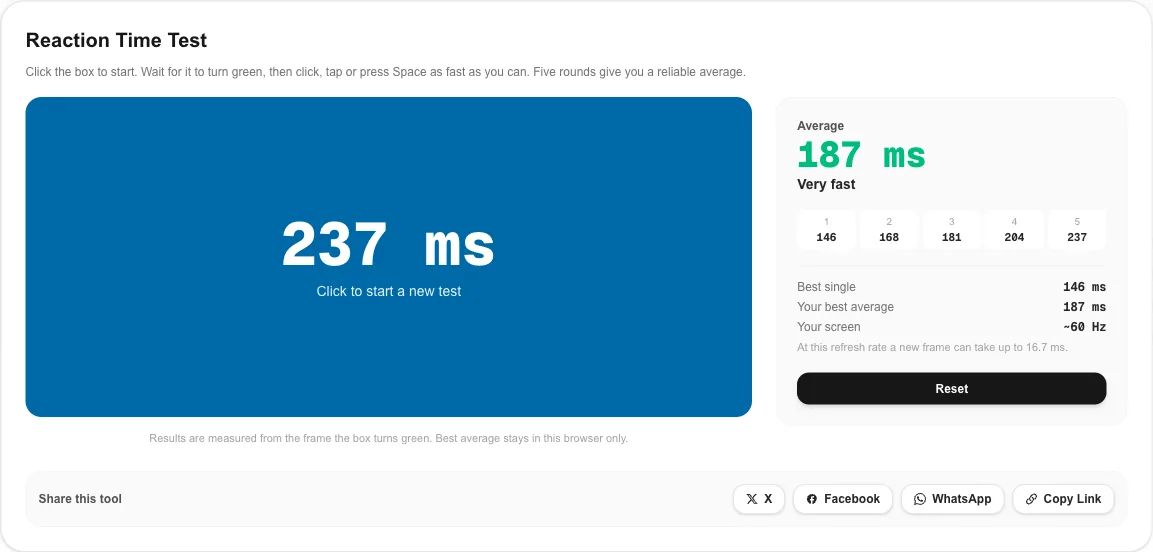
What This Reaction Time Test Measures
Reaction time is the delay between something happening and you responding to it. This reaction time test measures simple visual reaction time: the box changes from red to green, and the timer runs until your click, tap or Space press arrives. The result is shown in milliseconds, and lower is better.
- Five rounds and an average, because a single try swings by 30 ms or more.
- A random wait of 1.5 to 4.5 seconds, so you cannot time the change.
- False start detection: clicking before green shows “Too soon” and the round is repeated.
- Timing from the first green frame, not from when the computer decided to change color.
- Your best average, saved only in your browser, so you can track progress.
How to Get an Accurate Result
- Use a wired mouse or the Space bar and close heavy apps or games in the background.
- Sit at a normal distance with the box in the center of your view.
- Rest a finger on the button. Moving your hand after the change adds delay that is not reaction time.
- Do not anticipate. The delay is random. Guessing leads to false starts, not better scores.
- Run the reaction time test three times and look at the best average. The first run is usually a warm-up.
What Is a Good Reaction Time?
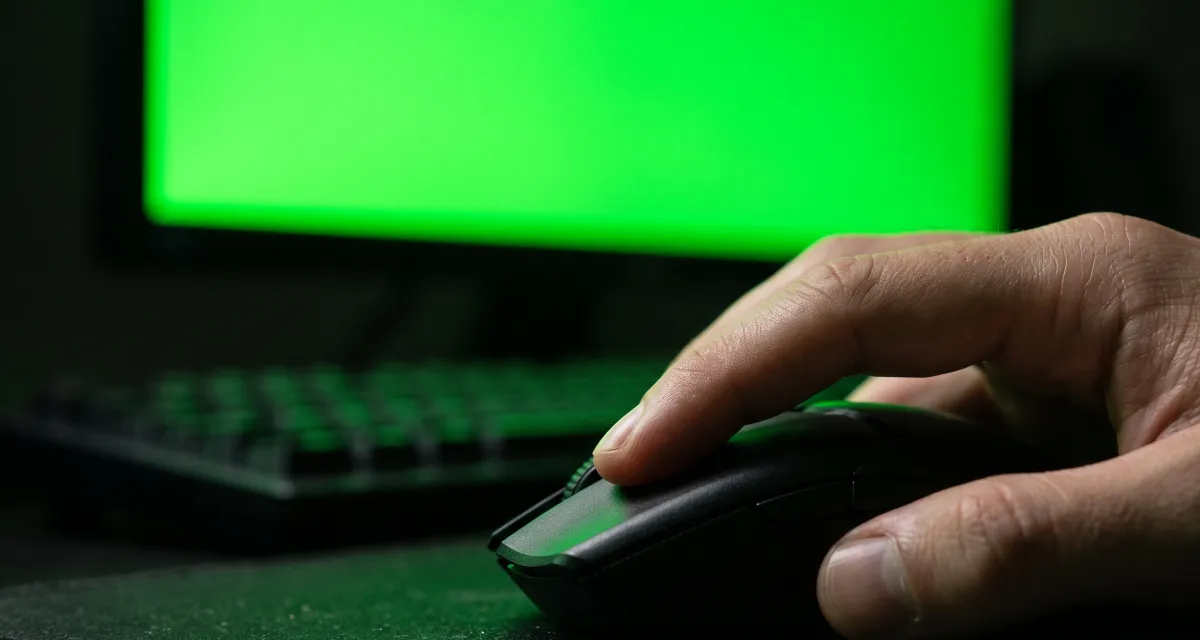
Results from online tests always include some device delay, so they are a little slower than lab numbers. As a rough guide for a mouse click on a normal desktop setup:
| Average over 5 rounds | What it usually means |
|---|---|
| Under 180 ms | Excellent, often a practiced player on a fast setup |
| 180–220 ms | Very fast |
| 220–260 ms | Above average |
| 260–320 ms | Typical for most people |
| Over 320 ms | Slow; tiredness, distraction or a laggy setup are common causes |
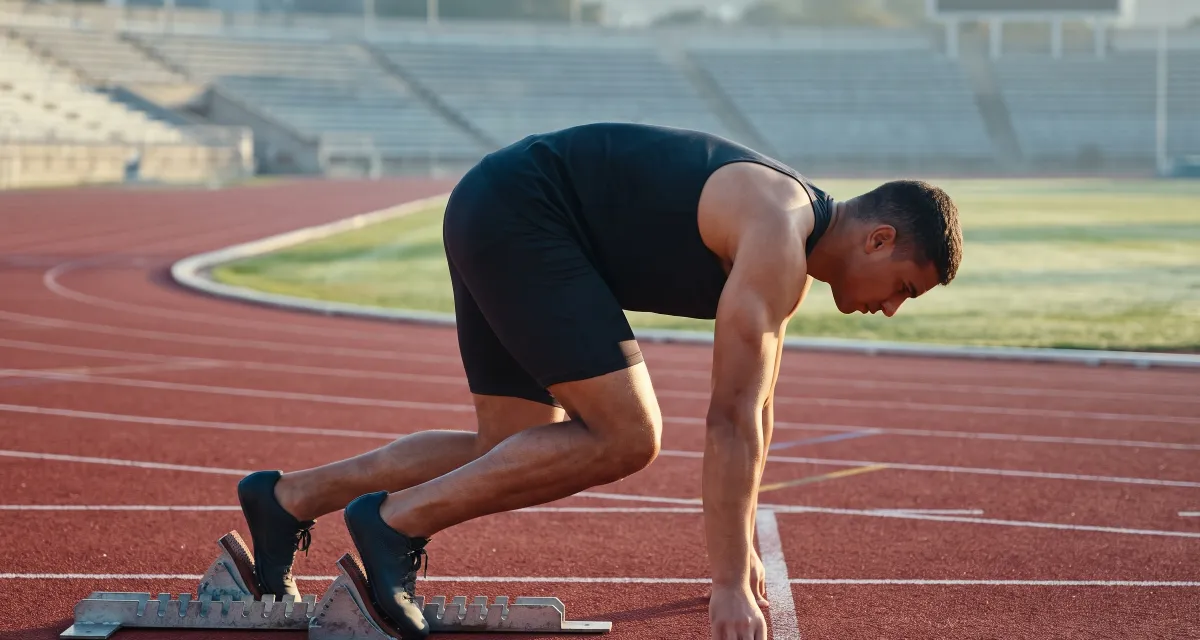
A single round under 100 ms is almost always a lucky guess rather than a reaction. Athletics uses the same idea: World Athletics treats a sprint start faster than 100 ms after the gun as a false start.
What Slows Your Reactions Down
Your body
- Sleep and fatigue have the biggest effect. A tired run can be 30–50 ms slower.
- Attention. Looking away or thinking about something else adds delay instantly.
- Age. Simple reaction time is usually fastest in young adults and slows gradually later in life.
- Warm-up. Cold hands and the first few attempts are slower.
Your setup
- Refresh rate: at 60 Hz the green frame can arrive up to 16.7 ms after the change; at 240 Hz, up to 4.2 ms.
- Monitor processing: TVs and some monitors add delay unless game mode is on.
- Mouse: a 125 Hz mouse reports clicks every 8 ms, a 1000 Hz mouse every 1 ms.
- Wireless sleep: some wireless mice drop or delay the first click after a pause.
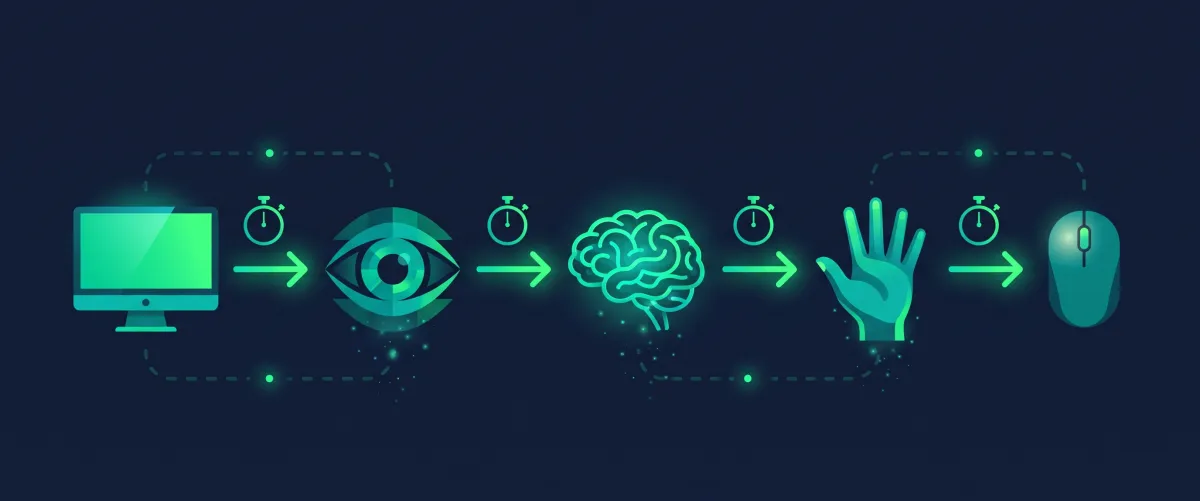
Your Screen Is Part of Your Score
Every result in this reaction time test includes the time your monitor needs to show the green frame. That is why the panel shows an estimate of your refresh rate and the longest wait for a new frame. If your monitor supports 144 Hz or more but the estimate says 60, check your display settings with the screen Hz test. A slow mouse report rate adds delay too; check it with the mouse polling rate test.
Upgrading hardware usually saves 10–20 ms in total. Practice and a good night’s sleep often save more.
How to Improve Your Reaction Time
- Practice in short sessions. A few runs of the reaction time test a day beat one long session.
- Sleep well and avoid testing when you are very tired.
- Stay relaxed. A tense hand reacts slower than a light, ready one.
- Train with games that reward timing, then come back and measure again.
- Use a responsive setup: high refresh rate, game mode on the display, and a wired or low-latency wireless mouse.
Reaction Time vs Clicking Speed
Reaction time is how quickly you respond to one signal. Clicking speed is how many clicks you can fit into a second. They train different things, and a good gamer needs both. When you are done here, measure your clicks per second with the CPS test, or check your keys with the keyboard test.
Reaction Time Test FAQ
What is a good reaction time?
On an online reaction time test, most people average somewhere between about 200 and 300 ms, with many landing near 250 ms. Under 200 ms is fast, and consistently under 180 ms is excellent. Remember that your mouse and screen add a little delay to every result.
How does this reaction time test work?
Click to start, then wait. After a random pause of 1.5 to 4.5 seconds the box turns green, and the reaction time test measures the milliseconds from the first green frame to your click, tap or Space press. Five rounds are averaged so one lucky or unlucky try does not decide your score.
Why did I get “Too soon”?
You clicked before the box turned green. The delay is random on purpose, so guessing does not help. Click again to repeat that round; early clicks are not counted in your average.
Is a click or the Space bar faster?
For most people they are within a few milliseconds of each other. Use whichever you would use in a game, and stick with it, so you can compare results between attempts.
Does my monitor affect my reaction time test score?
Yes, slightly. At 60 Hz a new frame can take up to 16.7 ms to appear, at 144 Hz up to 6.9 ms. Slow monitor processing, a wireless mouse in power-saving mode or a busy computer add more. The panel next to the reaction time test estimates your refresh rate.
Can I improve my reaction time?
Practice, sleep and focus help more than anything else. Scores usually improve over the first few runs as you learn the rhythm, then level off. A faster, lower-latency setup can also shave off a few milliseconds.