
What Is Mouse Polling Rate?
Polling rate is how often your mouse sends its position to the computer, measured in hertz (Hz). A 1000 Hz mouse reports 1000 times per second, or once every millisecond. A 125 Hz mouse reports once every 8 milliseconds.
A mouse polling rate test counts those reports while you move the mouse. It is the quickest way to confirm that a new gaming mouse actually runs at its advertised rate, that a wireless mouse has not dropped into a power saving mode, or that a setting in the vendor software really changed something.
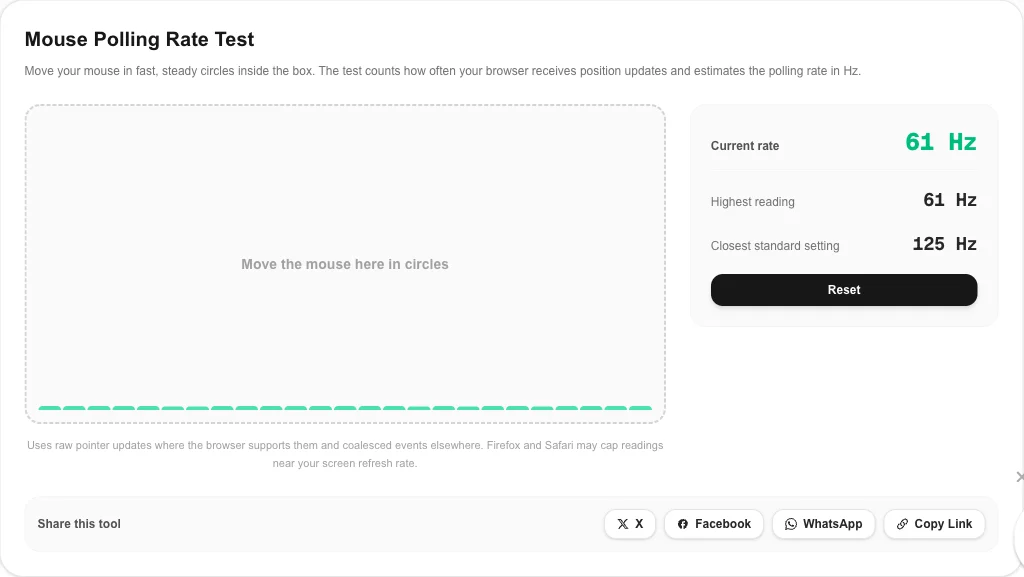
How to Run the Mouse Polling Rate Test
- Use Chrome or Edge for the most accurate mouse polling rate test. They report raw pointer updates.
- Move the mouse in fast, steady circles inside the box for five to ten seconds. Slow or stop-start movement gives low readings.
- Read the highest steady value and the closest standard setting, such as 500 Hz or 1000 Hz.
- Change the polling rate in your mouse software, press Reset, and run the test again to confirm the new value.
The bar chart at the bottom of the box shows recent readings. A flat row of bars means stable reporting; deep dips while you keep moving point to interference or USB problems.
Polling Rate Settings Compared
| Polling rate | Report interval | Typical use |
|---|---|---|
| 125 Hz | 8 ms | Office mice, battery saving |
| 250 Hz | 4 ms | Older gaming mice |
| 500 Hz | 2 ms | Budget gaming, longer battery life |
| 1000 Hz | 1 ms | Standard gaming setting |
| 4000 Hz | 0.25 ms | Competitive play on 240 Hz+ monitors |
| 8000 Hz | 0.125 ms | Enthusiast; higher CPU use |
The benefit of a higher polling rate grows with your monitor's refresh rate. On a 60 Hz screen, 500 Hz and 1000 Hz feel almost identical. On a 240 Hz or 360 Hz screen, more frequent reports give each frame a fresher cursor position. Check your screen first with the screen Hz test.
Why Your Polling Rate Reads Low
Browser limits
Browsers group pointer events to save power. Chrome and Edge expose every raw update through the pointerrawupdate event, so this polling rate test can see them. Other browsers may only deliver one event per screen frame, which caps the reading near 60, 120 or 144 Hz.
Wireless power saving
Many wireless mice drop to a lower rate on battery saver or when the receiver is far away. Put the receiver close to the mouse with the included extension, charge the mouse and select the performance or 1000 Hz mode.
USB hubs and front ports
Unpowered hubs, monitor USB ports and loose front-panel connectors can cause dips. Plug the mouse or receiver straight into a rear USB port and run the mouse polling rate test again.
Polling Rate, DPI and Input Lag
Polling rate, DPI and input lag are often mixed up. DPI controls cursor distance per inch of movement. Polling rate controls how often that movement is reported. Input lag is the total delay from your hand to the screen, and polling adds only a small part of it: up to 8 ms at 125 Hz, up to 1 ms at 1000 Hz.
Your monitor usually adds more delay than your mouse. To see how smooth motion looks on your display, try the UFO test, and check every button and the wheel with the mouse test.
Why Use This Polling Rate Test
- Raw updates: uses the most precise event your browser offers, with coalesced events as a fallback.
- Stable reading: uses the median gap between reports, so short pauses do not drag the number down.
- Standard setting match: rounds your peak to the nearest common rate from 125 Hz to 8000 Hz.
- Free and private: the mouse polling rate test runs locally with no download or sign-up.
Mouse Polling Rate Test FAQ
What is a good mouse polling rate?
1000 Hz is the standard for gaming mice and is plenty for almost everyone. Office mice often run at 125 Hz, which is fine for work. 2000 to 8000 Hz can make tracking slightly smoother on 240 Hz and faster monitors but uses more CPU.
Why does the mouse polling rate test show less than 1000 Hz?
Move the mouse faster and in steady circles; slow movement sends fewer updates. Also check that the vendor software is set to 1000 Hz, that a wireless mouse is in its performance mode rather than power saving, and that you are using Chrome or Edge.
Why does my reading jump around?
Polling rate readings always fluctuate a little because the mouse only reports when it moves. Look at the highest steady reading and the closest standard setting rather than every single value.
Can a browser measure 4000 Hz or 8000 Hz?
Chrome and Edge expose raw pointer updates and can show high rates, though very high readings can vary with CPU load and USB port. Firefox and Safari often cap readings near the screen refresh rate, so test 4000 Hz and 8000 Hz mice in Chrome.
Is polling rate the same as DPI?
No. DPI sets how far the cursor moves per inch of mouse movement. Polling rate sets how often the mouse reports its position to the computer. A mouse polling rate test checks only the second.
Does a higher polling rate reduce input lag?
Yes, slightly. At 125 Hz the mouse reports every 8 ms; at 1000 Hz every 1 ms. Going above 1000 Hz saves less than a millisecond more, which matters mainly to competitive players on very fast monitors.